
Hey there! Are you struggling with switching 2nd monitor settings? Don’t worry you’re not alone in this journey. Setting up and managing dual monitors can feel overwhelming at first. But trust me, once you get the hang of it, you’ll wonder how you ever worked with just one screen.
I’ve been helping people with monitor setups for years. Today, I’m going to walk you through everything you need to know about switching your second monitor. We’ll cover the basics, troubleshoot common issues, and get you set up like a tech expert.
Understanding Your Dual Monitor Setup Basics
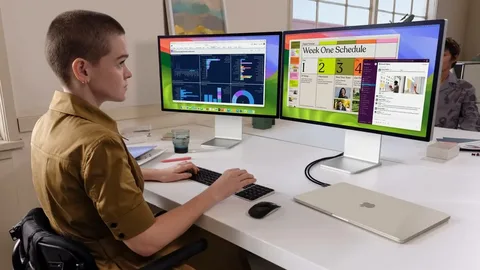
Before we dive into switching 2nd monitor configurations, let’s talk about what we’re working with. A dual monitor setup means you have two screens connected to your computer. One acts as your primary display, while the other serves as your secondary screen. Think of it like having two windows in your office each gives you a different view and more space to work.
Your primary monitor is usually where your taskbar sits. It’s also where most programs open by default. The second monitor extends your desktop space. This gives you more room for multitasking and productivity.
Most modern computers support dual displays out of the box. Whether you’re using Windows 10, Windows 11, or even Mac, the process is pretty straightforward. The key is knowing where to look and what settings to adjust.
See Also:
Why Call Center Outsourcing with Garage2Global Might Be the Smartest Move for Your Business
How to Switch Second Monitor Display Settings
Let’s start with the most common task – switching your second monitor display mode. Right-click anywhere on your desktop and select “Display settings.” This opens up your display control panel where all the magic happens.
You’ll see two rectangles representing your monitors. These show how Windows sees your dual monitor second screen setup. Click “Identify” if you’re not sure which monitor is which. Numbers will appear on each screen to help you figure things out.
Now, look for the “Multiple displays” dropdown menu. This is where you control how your screens work together. You have several options here. “Extend these displays” gives you more desktop space. “Duplicate these displays” shows the same thing on both screens. “Show only on 1” or “Show only on 2” uses just one monitor.
For most people, “Extend these displays” is the sweet spot. It turns your second monitor into extra workspace. You can drag windows between screens and really spread out your work.
See Also: Diag Image: Easy Guide for Everyone
Connecting Your Second Monitor Successfully
Before you can start switching 2nd monitor settings, you need to connect it properly. Most laptops have HDMI, USB-C, or DisplayPort connections. Desktop computers often have multiple video ports on the back.
Check what ports your computer has available. Then look at your second monitor’s input options. You might need an adapter if the ports don’t match. For example, if your laptop only has USB-C but your monitor uses HDMI, you’ll need a USB-C to HDMI adapter.
Once you connect the cable, your computer should detect the second monitor automatically. If it doesn’t show up right away, don’t panic. Sometimes it takes a moment for the system to recognize the new display. Try pressing Windows key + P to bring up the projection menu. This gives you quick access to display options.
If your second monitor not detected, we’ll troubleshoot that in the next section. For now, let’s assume everything connected smoothly and move forward with configuration.
Troubleshooting Second Monitor Not Displaying Issues
Nothing’s more frustrating than connecting everything correctly only to find your second monitor not displaying anything. Let’s fix this step by step. First, check all your cable connections. Make sure everything is plugged in securely on both ends.
Try a different cable if you have one available. Sometimes cables go bad, especially cheaper ones. If you’re using an adapter, that could be the culprit too. Test with a direct connection if possible.
Check your monitor’s input source. Most monitors have multiple input options like HDMI 1, HDMI 2, DisplayPort, etc. Use the monitor’s menu button to cycle through input sources. Make sure it matches where you plugged in your cable.
Update your graphics drivers if nothing else works. Outdated drivers are a common cause of display problems. Go to your graphics card manufacturer’s website (NVIDIA, AMD, or Intel) and download the latest drivers for your specific model.
Adjusting Second Monitor Resolution and Settings
Getting your second monitor resolution adjustment right is crucial for a good experience. Different monitors have different native resolutions. Using the wrong resolution makes everything look blurry or stretched out.
Go back to your Display settings and click on the monitor you want to adjust. Scroll down to find “Display resolution” and click the dropdown. Your monitor’s recommended resolution usually appears at the top with “(Recommended)” next to it.
Choose the recommended resolution for the best picture quality. If text looks too small, don’t change the resolution. Instead, adjust the “Scale and layout” setting above it. This makes everything bigger without losing clarity.
You can also adjust each monitor’s orientation here. Some people like to rotate their second monitor vertically for reading documents or coding. Just click on “Display orientation” and choose “Portrait” if you want to try this setup.
Read Also: Epson XP-445 Driver Download: Your Complete Guide from EpsonDriverCenter.com
Changing Your Primary Monitor Configuration
Sometimes you need to change primary monitor settings to match your workflow. Maybe your bigger, better monitor is currently set as secondary. Or perhaps you want your main work to happen on the monitor directly in front of you.
In Display settings, click on the monitor you want as your primary. Scroll down and check the box that says “Make this my main display.” Your taskbar and desktop icons will move to this screen immediately.
This change affects where new programs open by default. Most software launches on your primary monitor initially. You can always drag windows to your secondary screen afterward, but setting the right primary monitor saves time.
Remember, your primary monitor is also where login screens and system dialogs appear. Choose the monitor that’s most convenient for you to interact with these elements.
Extending Display to Second Monitor Effectively
Learning to extend display to second monitor opens up a world of productivity possibilities. With extended displays, you can have your email on one screen while working on documents on the other. Or keep reference materials visible while you work on your main project.
The key to effective dual display second monitor usage is understanding how windows behave. When you drag a window to the edge of one screen, it moves to the other screen. This works horizontally between side-by-side monitors or vertically if you’ve arranged them that way.
You can snap windows to screen edges just like on a single monitor. Drag a window to the left or right edge, and it fills half the screen. This works great for comparing documents or keeping chat windows visible while you work.
Some programs remember which monitor you last used them on. Others always open on your primary display. Don’t worry – you’ll quickly develop habits for managing this as you get used to your setup.
Fixing Second Monitor Flickering and Connection Issues
Is your second monitor flickering or showing weird display artifacts? This is usually a sign of connection problems or incompatible settings. Let’s work through the most common fixes for these annoying issues.
First, check your refresh rate settings. Some monitors don’t play well with certain refresh rates. In Display settings, click “Advanced display settings” and look for “Refresh rate.” Try different options to see if the flickering stops.
Cable quality matters more than most people realize. A poor-quality cable can cause all sorts of problems with second monitor connection. If you’re using a long cable or a cheap adapter, consider upgrading to a better one.
Heat can also cause display issues. Make sure your graphics card has good ventilation and isn’t overheating. Check that your monitor isn’t in direct sunlight or near a heat source. Electronics don’t like getting too warm.
Screen Mirroring vs Extended Display Options
Understanding the difference between screen mirroring second display and extended display helps you choose the right setup. Screen mirroring shows the exact same content on both monitors. This is perfect for presentations or when you want to share your screen with others.
Extended display gives you more desktop space to work with. Each monitor shows different content, effectively doubling your workspace. This is what most people want for daily productivity work.
You can switch between these modes anytime using Windows key + P. This brings up a quick menu with four options: PC screen only, Duplicate, Extend, and Second screen only. It’s super handy when you need to change things quickly for presentations.
Some people use different modes for different tasks. Extended display for regular work, mirrored display for presentations, and single display when they want to focus on just one screen.
Windows 10 vs Windows 11 Second Monitor Setup
The process for switching second monitor windows 10 and Windows 11 is very similar. Both versions use the same Display settings panel and have the same basic options. However, Windows 11 has a slightly cleaner interface and a few extra features.
Windows 11 makes it easier to configure second display windows 11 setups with better monitor detection. The settings menu is also more organized, making it simpler to find what you need. The Windows + P shortcut works the same way in both versions.
If you’re still on Windows 10, don’t worry. Everything we’ve covered applies to your system too. The screenshots might look slightly different, but the functionality is essentially identical.
Both versions support the same range of display adapters and monitor types. Your hardware compatibility depends more on your graphics card and ports than your Windows version.
Advanced Tips for Second Monitor Management
Once you’ve mastered the basics of switching 2nd monitor settings, here are some pro tips. Use different wallpapers on each monitor to help distinguish between them quickly. Right-click on your desktop, choose “Personalize,” and look for options to set different backgrounds.
Consider the physical positioning of your monitors carefully. Most people place them side by side, but you might prefer one above the other. The arrangement in Display settings should match your physical setup for the most intuitive experience.
Keyboard shortcuts can speed up your workflow significantly. Windows + Shift + Left/Right arrow moves windows between monitors quickly. Alt + Tab shows windows from all monitors, making it easy to switch between applications.
Think about your workflow when positioning monitors. Put your primary work monitor directly in front of you. Use the secondary monitor for reference materials, communication apps, or monitoring tools.
Common Problems and Quick Solutions
Let’s wrap up with solutions to the most frequent issues people face. If your second monitor not working at all, start with the basics. Check power, cables, and input sources before diving into software settings.
For problems with second monitor setup, try disconnecting and reconnecting everything. Sometimes a fresh connection resolves detection issues. Also, try connecting your second monitor to a different port if available.
When you troubleshoot second monitor issues, work systematically. Change one thing at a time so you know what fixed the problem. This also helps if you need to undo changes that didn’t work.
Remember that some older monitors don’t support higher resolutions or refresh rates. If you’re mixing old and new equipment, the older monitor might limit your options. That’s normal and not necessarily something you need to fix.
Your dual monitor journey doesn’t have to be complicated. Start with basic settings and gradually explore more advanced options as you get comfortable. Most people find that a simple extended display setup meets all their needs perfectly.
With these tips and techniques, you should be able to handle any switching 2nd monitor challenge that comes your way. Take your time, be patient with the setup process, and don’t hesitate to try different configurations until you find what works best for your specific needs and workflow.